
Building Hailo AI Apps with AI Coding Agents: A Complete Tutorial

Build production-ready AI applications on Hailo accelerators using natural language. Describe what you want, the agents handle how.
Note: Data Flow Compiler agents & skills are coming soon.
This tutorial walks you through setting up and using the agentic development workflow in the hailo-apps repository across three platforms:
- GitHub Copilot in VS Code (primary IDE experience)
- Claude Code (terminal CLI + VS Code extension)
By the end, you’ll know how to go from a one-line description like “person detection with tracking on USB camera” to a fully validated, runnable application — without writing the code yourself.
Prerequisites
| Requirement | Details |
|---|---|
| Hailo hardware | Hailo-8, Hailo-8L, or Hailo-10H accelerator installed |
| Hailo Runtime | HailoRT + PCIe driver + TAPPAS installed (Installation Guide) |
| IDE (pick one or more) | VS Code with GitHub Copilot subscription, OR Claude Code installed |
Setup: Clone & Activate
# Clone the repository
git clone https://github.com/hailo-ai/hailo-apps.git
cd hailo-apps
# Install and activate the environment
./install.sh
source setup_env.sh
After source setup_env.sh , you’ll have: – Python virtual environment activated – PYTHONPATH set to the project root – All Hailo SDK libraries accessible
Verify your Hailo device is connected:
hailortcli fw-control identifyThis should print your device type (e.g., Hailo-8, Hailo-10H).
How the Agentic Framework Works
You don’t need to know these files exist – the agents find them automatically. But understanding the structure helps you troubleshoot if something goes wrong.
The repository ships with a built-in AI knowledge base in the .hailo/ directory. This is the single source of truth that teaches AI agents how to build Hailo apps correctly.
Architecture at a Glance

What lives in .hailo/:
| Directory | What It Contains |
|---|---|
agents/ | 7 agent definitions — each knows how to build a specific app type |
skills/ | Step-by-step build guides for each app type (the “recipes”) |
instructions/ | Coding standards, architecture patterns, testing conventions |
toolsets/ | SDK API references (HailoRT, GStreamer elements, VLM Backend) |
memory/ | Persistent patterns, known pitfalls, optimization tips |
prompts/ | Ready-to-use prompt templates for common tasks |
scripts/ | Validation tools (validate_app.py, validate_framework.py) |
How Agents Use This Knowledge
When you ask an agent to build an app, it:
- Reads the relevant skill – a structured recipe for that app type
- Loads coding standards – conventions it must follow (absolute imports, HEF resolution, etc.)
- Checks memory – known pitfalls to avoid
- Follows phase gates – mandatory checkpoints (design → plan → build → validate → report)
Available Agents
| Agent | What It Builds | Hardware | When to Use |
|---|---|---|---|
| HL App Builder | Routes to the right specialist | All | You’re not sure which type you need |
| HL Pipeline Builder | GStreamer video pipelines (detection, pose, segmentation) | All | Real-time video processing |
| HL VLM Builder | Vision-Language Model apps (monitoring, scene analysis) | Hailo-10H | Image understanding with natural language |
| HL Standalone Builder | OpenCV + HailoInfer apps (batch, custom inference) | All | Custom processing without GStreamer |
| HL LLM Builder | LLM chat and text generation | Hailo-10H | Chatbots, text processing |
| HL Agent Builder | AI agents with tool calling | Hailo-10H | Smart assistants, API integrators |
| HL Voice Builder | Voice assistants (Whisper STT + Piper TTS) | All | Speech-to-text, voice control |
Rule of thumb: Start with HL App Builder if you’re unsure — it asks questions and routes you to the right specialist. Use a specialist directly when you know exactly what type you want.
Using GitHub Copilot in VS Code
How It Works
When you open the hailo-apps repo in VS Code with GitHub Copilot enabled, it automatically loads the .github/copilot-instructions.md file and all agent definitions from .github/agents/. This means the agents are immediately available in the Copilot Chat panel.
Invoking an Agent
Open Copilot Chat (Ctrl+Shift+I or the chat icon) and type:
@HL App Builder person detection with tracking on USB cameraOr go directly to a specialist:
@HL Pipeline Builder pose estimation game with scoring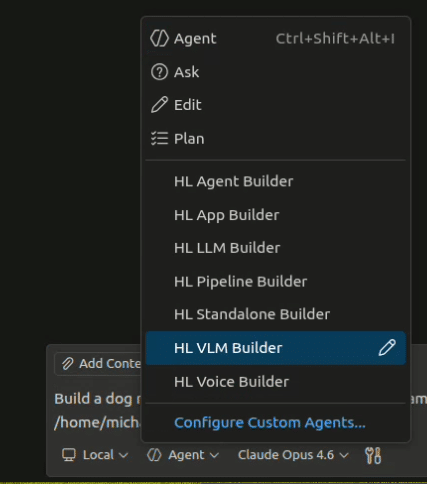
The Agent Interaction
The agent will respond immediately and ask 2-3 design questions:

After you answer, it presents a build plan for your approval. Only after you approve does it start creating files.
Using Prompt Templates
The repo includes ready-made prompt templates in .github/prompts/. In VS Code:
- Open the Command Palette (Ctrl+Shift+P)
- Type “Copilot: Use Prompt”
- Select a template like
new-pipeline-app.prompt.md - Fill in the variables and send
Available templates:
| Template | Creates |
|---|---|
new-pipeline-app | GStreamer pipeline application |
new-vlm-variant | VLM monitoring/analysis app |
new-standalone-app | Standalone inference app |
new-llm-app | LLM chat app |
new-voice-app | Voice assistant app |
new-agent-tool | New tool for an agent app |
new-pose-game | Interactive pose estimation game |
orchestrated-build | Meta-template for complex multi-file apps |
What Gets Created
After the agent finishes, you’ll have:
hailo_apps/python/pipeline_apps/your_app_name/
├── __init__.py # Package marker
├── your_app_name.py # Main application
├── your_pipeline.py # Pipeline configuration (if applicable)
├── app.yaml # App manifest
├── run.sh # Launch script
└── README.md # Documentation
Using Claude Code (CLI)
How It Works
Claude Code reads CLAUDE.md at the repository root as its entry point, then follows references into .claude/ (which contains thin redirects to .hailo/). The same agents, skills, and knowledge are available — just invoked differently.
Getting Started
# Make sure you're in the repo root with environment activated
cd hailo-apps
source setup_env.sh

# Launch Claude Code
claude
Claude Code will automatically detect the CLAUDE.md file and load the project context.
Invoking Agents via Slash Commands
Inside the Claude Code session, use slash commands to invoke skills:
/hl-build-pipeline-appOr simply describe what you want in natural language:
> Build a person detection pipeline with tracking that uses a USB cameraClaude Code reads the relevant skill files, asks you design questions, and proceeds with the build.
Using Prompts
You can reference prompt templates directly:
> Follow the prompt in .hailo/prompts/new-pipeline-app.md to build a vehicle counterOr paste the template content and fill in variables yourself.
Validating & Running Your App
Automated Validation
Every agent runs validation automatically, but you can also run it manually:
# Static checks only (11 convention checks — no hardware needed) python3 .hailo/scripts/validate_app.py hailo_apps/python/pipeline_apps/your_app/
# Static checks + runtime smoke tests (CLI --help, module imports) python3 .hailo/scripts/validate_app.py hailo_apps/python/pipeline_apps/your_app/ --smoke-test
What gets checked: – Required files present (__init__.py, README.md, run.sh) – Python syntax valid – All imports are absolute (no relative imports) – Logger usage (get_logger(__name__)) – Graceful shutdown (SIGINT handling) – No unused imports or unreachable code – CLI --help works (smoke test) – Module imports without errors (smoke test)
Running Your App
# Always activate environment first source setup_env.sh
# Run with USB camerapython3 hailo_apps/python/pipeline_apps/your_app/your_app.py --input usb
# Run with video file python3 hailo_apps/python/pipeline_apps/your_app/your_app.py --input /path/to/video.mp4 #
Run with RTSP stream python3 hailo_apps/python/pipeline_apps/your_app/your_app.py --input rtsp://192.168.1.100:8554/stream
Tips for Best Results
1. Be Specific in Your Initial Request
| Less effective | More effective |
|---|---|
| “Build a detection app” | “Person detection with tracking on USB camera, show bounding boxes with IDs” |
| “Make a VLM app” | “Dog monitoring camera that alerts when it sees the dog on the couch” |
| “Voice assistant” | “Voice-controlled home assistant with wake word, runs on Hailo-10H” |
2. Answer Design Questions with Detail
The agent asks questions for a reason — your answers directly shape the code. Don’t just say “yes” or “default”. Tell it what you actually want.
3. Use the Right Agent
- Don’t know the type? → Start with
HL App Builder(it routes you) - Know exactly what you want? → Go directly to the specialist (saves one step)
- Complex multi-modal app? → Start with
HL App Builderand describe the full scope
4. Iterate After the First Build
The agent produces a working baseline. You can then: – Ask it to modify specific behaviors – Add features incrementally – Ask it to explain any part of the generated code
5. Trust the Validation
If validate_app.py --smoke-test passes, the app follows all conventions and will run correctly (assuming hardware is connected). If it fails, the agent will fix the issues automatically.
Troubleshooting
| Issue | Cause | Solution |
|---|---|---|
| Agent doesn’t know Hailo APIs | .hailo/ directory missing or incomplete | Re-clone the repo; ensure you’re on the latest branch |
| Agent writes relative imports | Convention not loaded | Ask the agent to re-read coding standards and fix |
--help fails | PYTHONPATH not set | Run source setup_env.sh first, or use run.sh |
| “No element ‘hailonet’” | TAPPAS/GStreamer plugins not installed | Reinstall TAPPAS: ./install.sh |
| Agent builds in wrong directory | Misclassified app type | Specify the type explicitly: “pipeline app” or “standalone app” |
| Device not found | Hailo not connected or driver issue | Run hailortcli fw-control identify to check |
| Platform configs seem stale | Generated files out of sync | Run python3 .hailo/scripts/generate_platforms.py --generate |
| Agent asks no questions | You said “just build it” or “use defaults” | That’s by design – it uses sensible defaults when you skip questions |
What About Cursor?
The repository also includes support for Cursor via .cursor/rules/. If you use Cursor as your IDE, the same agents and skills are available through its rules system. The .mdc files in .cursor/rules/ automatically load relevant context when you’re editing files in matching directories.
Next Steps
- Browse existing apps in
hailo_apps/python/pipeline_apps/for inspiration - Try building a simple detection app first, then iterate
- Check the full agent reference for detailed API docs
- Visit the Hailo Community Forum for help and to share what you’ve built
Happy building! 🚀